NTsocial MeshLink

NTsocial MeshLink · Getting started

Pair MeshLink with your first Meshtastic radio

This guide takes you from a freshly installed app to a working Bluetooth connection, then shows you around. Keep the radio next to your phone and give yourself about ten minutes.

  • About 10 minutes
  • Android 8.0 or later
  • One phone, one radio

Before you start

What you need

MeshLink doesn't send anything over the air by itself. It talks to your radio over Bluetooth, and the radio carries your messages over LoRa to other Meshtastic radios.

  • A Meshtastic radio

    Flashed with Meshtastic firmware, charged, and with its antenna attached. No firmware yet? The Meshtastic web flasher installs it from a computer.

  • An Android phone

    Android 8.0 or later, Bluetooth switched on, and MeshLink installed from Google Play. You don't need the NTsocial app for this guide.

  • A second radio (optional)

    Only needed to test a message over LoRa. A friend's radio on the same channel is perfect. Everything else here works with one radio.

Setup

Six steps to a connected radio

Every screen here comes from a real phone running MeshLink. Tap one to see it full size.

  1. Put the antenna on, then switch the radio on

    Always attach the antenna before you power a LoRa radio. Transmitting without one can damage it. Then turn the radio on and keep it close to your phone.

    A radio talks to one phone at a time over Bluetooth. If the official Meshtastic app or another phone is connected to it, disconnect there first.

  2. Open MeshLink and allow Bluetooth

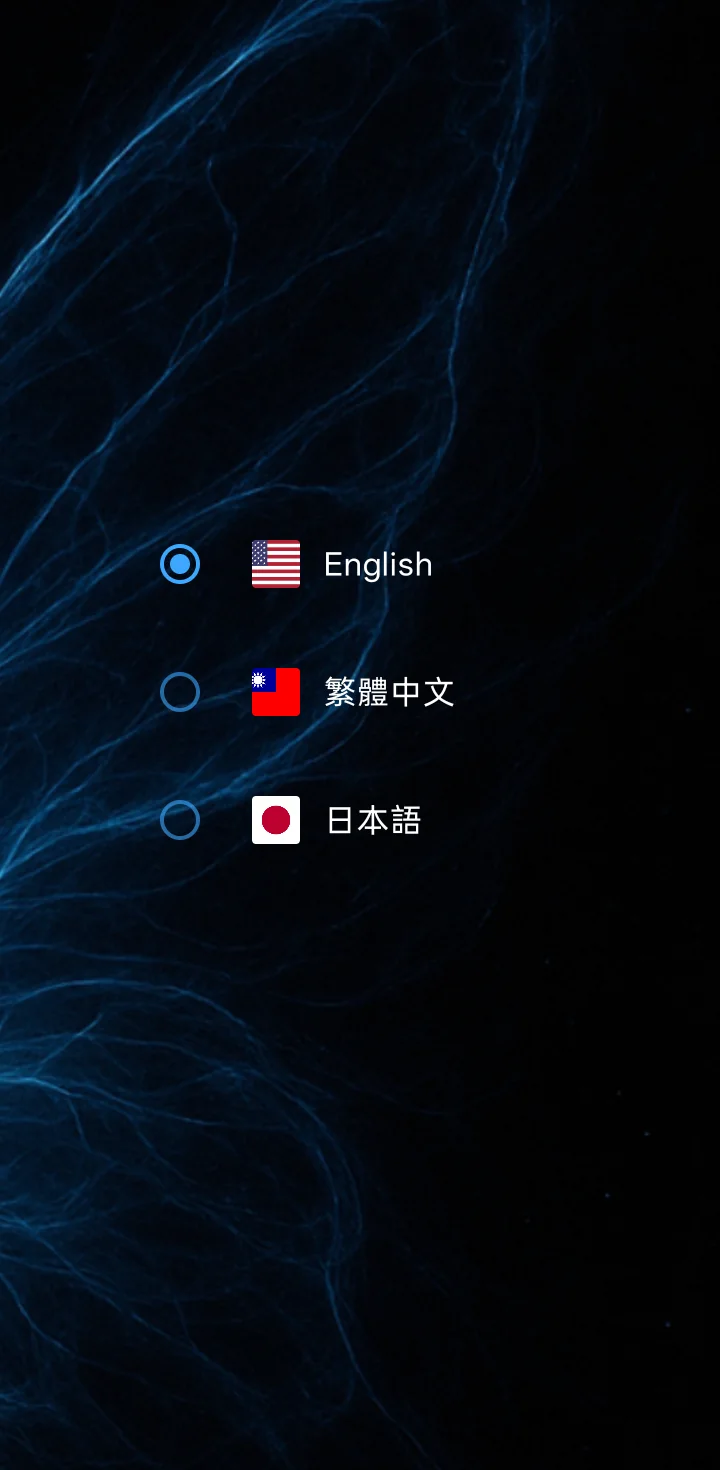
    The first time you open MeshLink, it asks which language you want and then shows a short introduction.

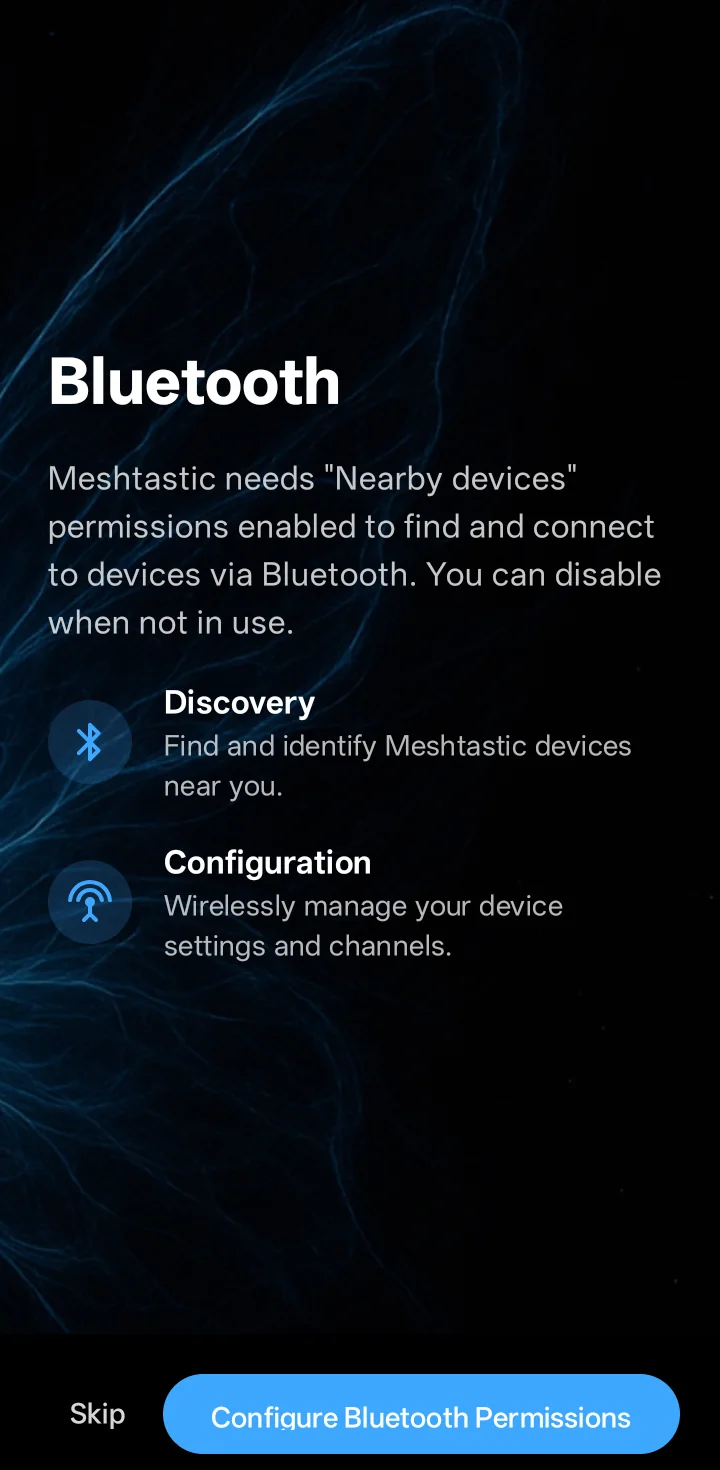
    On the Bluetooth page, tap Configure Bluetooth Permissions 1. Android asks whether MeshLink may find and connect to nearby devices. Tap Allow. Without this, MeshLink can't see your radio.

    The next pages ask about location and notifications. Neither is needed for this guide, so you can skip them. One exception: on Android 11 or older, allow Location, because those versions need it to scan for Bluetooth devices.

    Want to see the introduction again later? It's in Settings, near the bottom: Show Introduction.

    First launch: pick a language, then allow Bluetooth.
  3. Scan and tap your radio

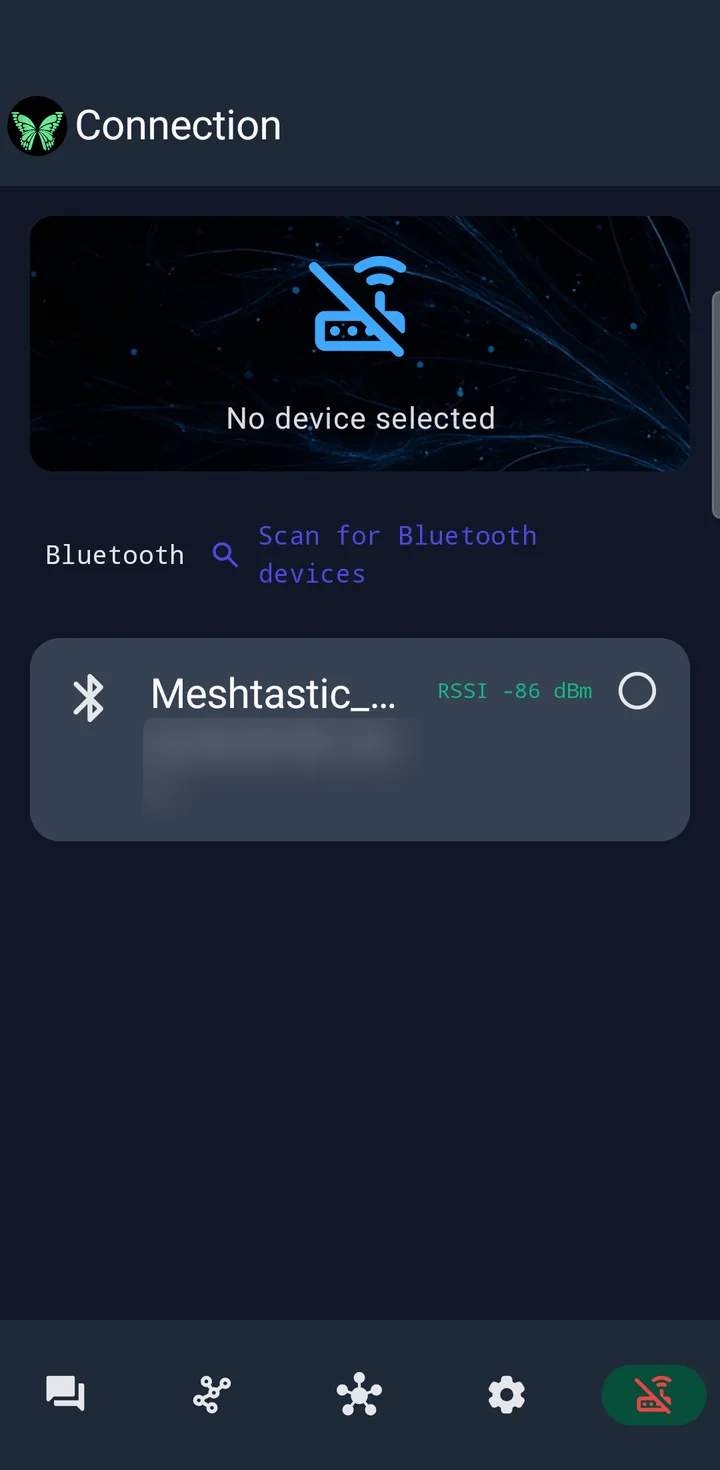
    Open the Connection tab: the router icon at the right end of the bottom bar. Tap Scan for Bluetooth devices 1.

    Radios show up as Meshtastic_ followed by four characters 2. A radio with a screen shows the same four characters on it, which helps when several radios are around. Tap yours.

    The scan stops by itself after a short while. If your radio isn't listed yet, just scan again.

    Scan results. The Bluetooth address is blurred.
  4. Type the pairing PIN

    Android now shows a Bluetooth pairing request and asks for a six-digit PIN. The PIN comes from the radio, not from MeshLink:

    • Radio with a screen: the PIN appears on the display. Type it in while it's still showing.
    • Radio without a screen: it uses a fixed PIN. Out of the box that's 123456, unless the owner changed it.

    Tap Pair. You only do this once per phone; after that the radio reconnects without asking.

    If Android says “Paired” but MeshLink isn't connected yet, go back to the Connection tab and tap the radio again. Pairing in Android is only half the job.

    The six-digit PIN shown on the radio's screen is typed into Android's Bluetooth pairing request. PIN 384615 Bluetooth pairing request Meshtastic_1407 Enter PIN 384615 Cancel Pair ON THE RADIO ON YOUR PHONE
    Illustration with an example PIN. The pairing window looks a little different on each phone brand.
  5. Wait for “Connected”

    MeshLink now connects and loads the radio's settings, channels and node list. Leave the app open; the first time can take a little while.

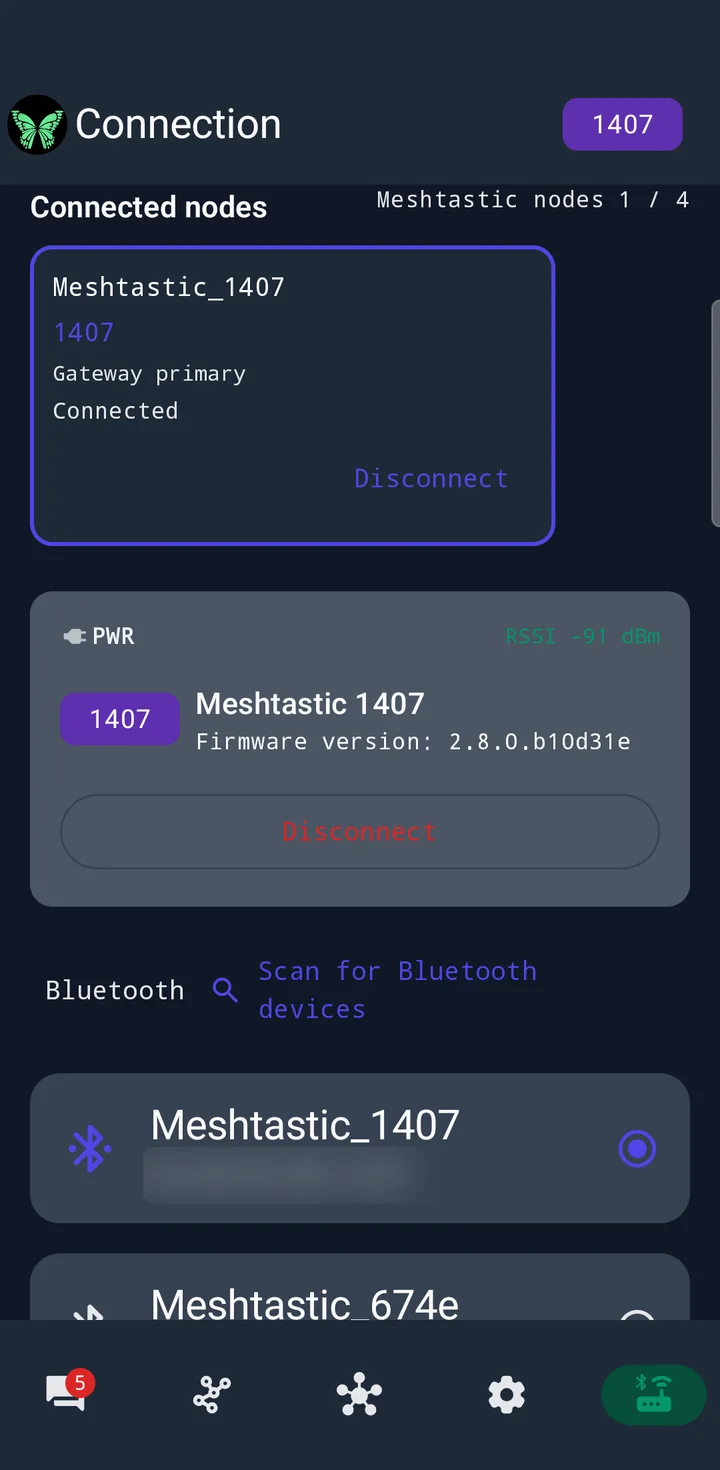
    You're done when the card at the top says Connected 1 and the radio's name and firmware version appear below it 3.

    Meshtastic nodes 1 / 4 2 shows occupied connection slots, including a radio that is still connecting. MeshLink has up to four slots; Remembered devices do not use one. The Gateway primary label only matters if you also use NTsocial, so you can ignore it for now.

    Connected. The Bluetooth address is blurred.
  6. Check the region before you transmit

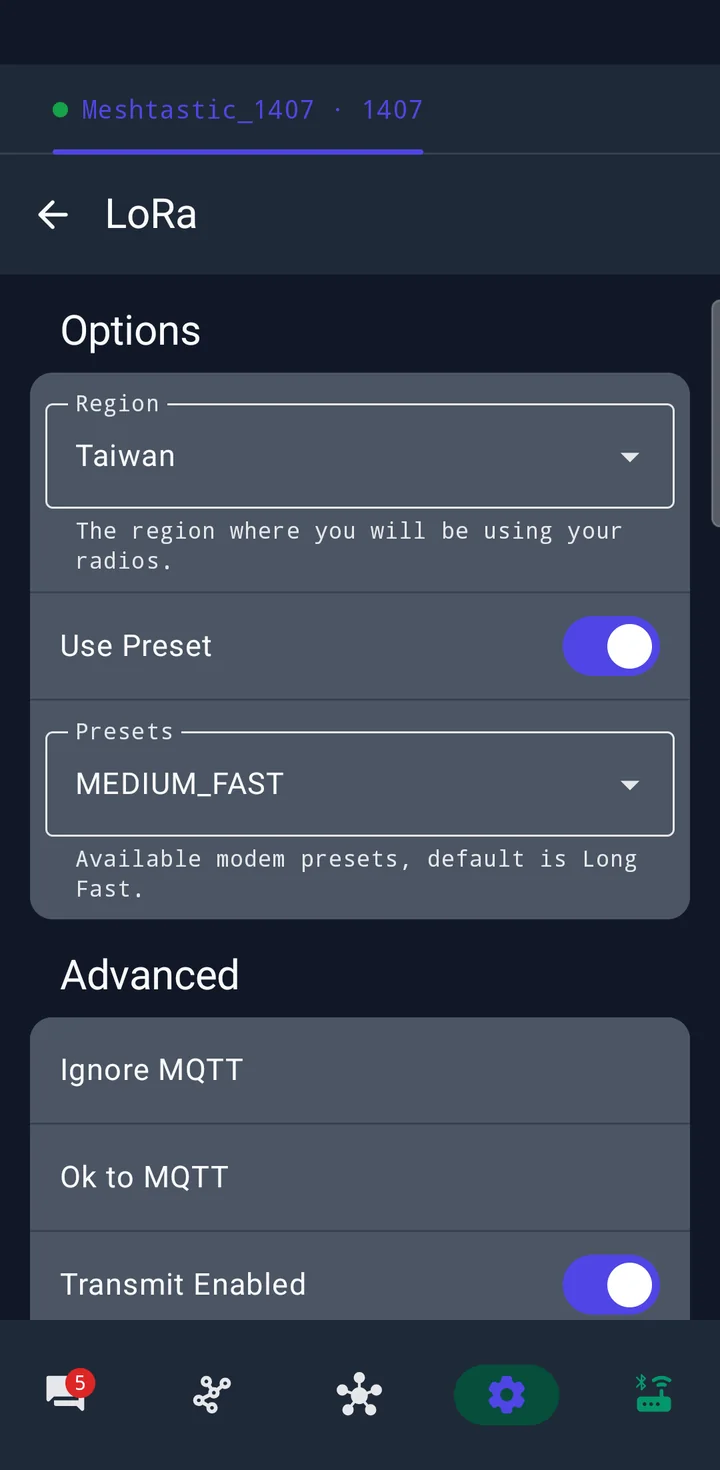
    Every LoRa radio has to be set to the region you're in, so it stays on frequencies that are legal there. Tap the gear icon for Settings, open LoRa and look at Region 1.

    If it's already right, leave it. Otherwise pick your region, scroll down and tap Save, which only appears once you've changed something. The radio restarts; give it a moment to reconnect.

    The example shows Taiwan and MEDIUM_FAST because that's how this radio was set up. Use your own region, and ask the people you'll be talking to which preset and channels they use. Radios only hear each other when those match.

    MeshLink's language and the radio's region are separate settings. Switching the app to English doesn't change the region. More in the Meshtastic initial configuration guide.

    Settings → LoRa. These values belong to this example radio.

That's it: your phone and your radio are connected. Next, a quick look around the app.

Basics

Finding your way around

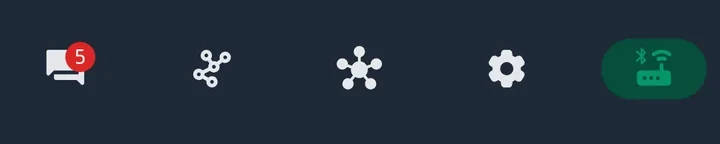
The bar at the bottom has five tabs. They only show icons, so here's what each one is, from left to right.

MeshLink's bottom bar with five icons
  1. ChannelsYour conversations
  2. NodesRadios heard on the mesh
  3. MeshCoreA separate radio system, not needed here
  4. SettingsRadio and app settings
  5. ConnectionBluetooth and your radios

Channels: where conversations live

Each connected radio gets a card, with its channels listed underneath. Tap a channel to open it 1.

A Meshtastic radio has up to eight channels. Use All at the top to see every radio together, or a radio's name to see just that one. If a radio goes offline, its old messages stay readable, marked Cached · read only.
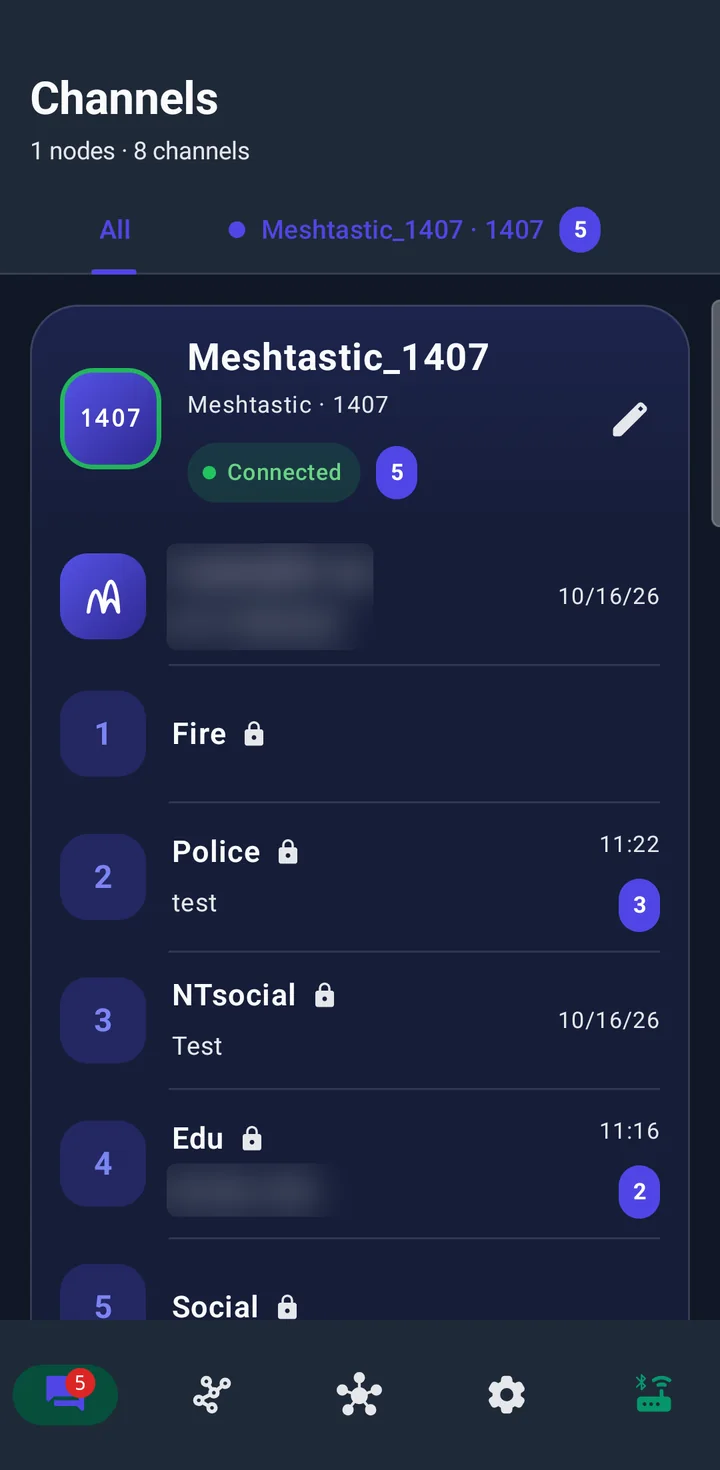
Some channel names and previews are blurred.

Sending a message

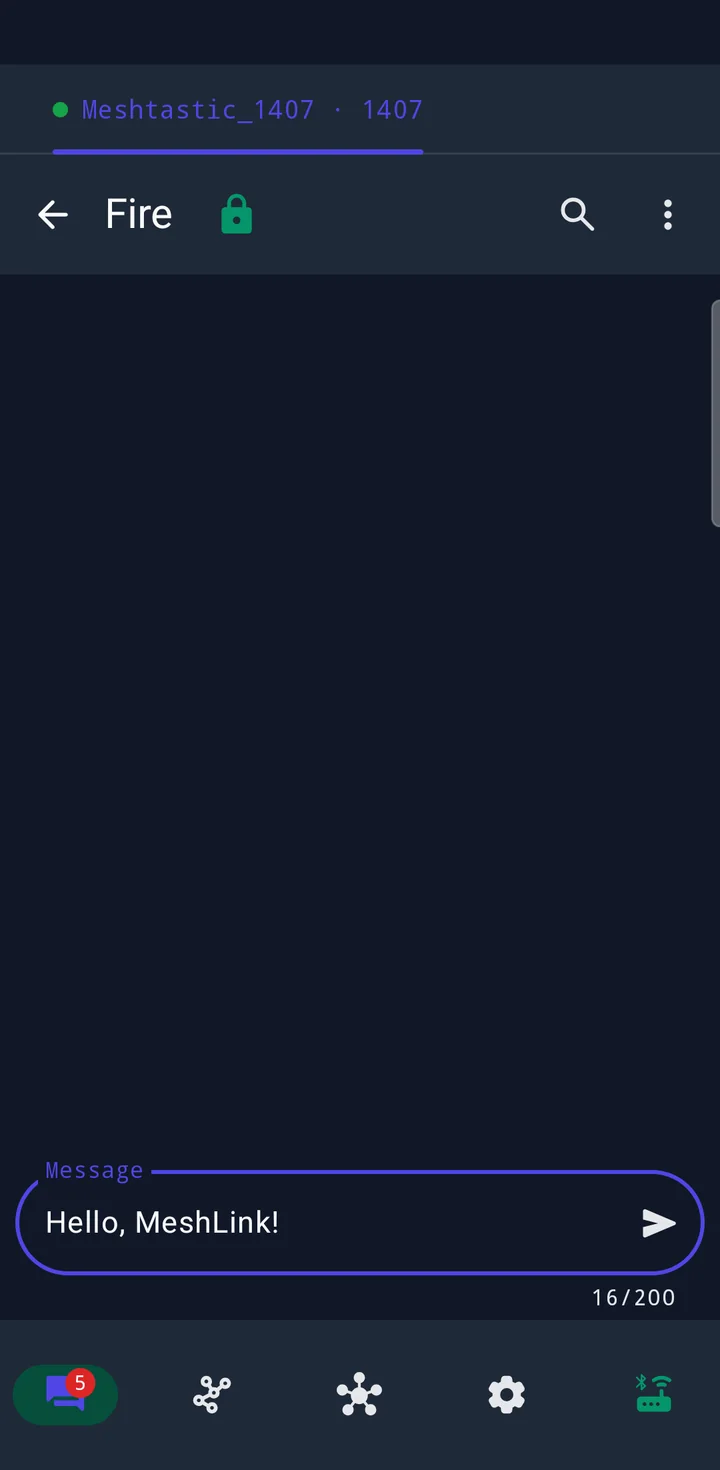
Open a channel, type in the Message field 1 and tap the arrow. A message can be up to 200 bytes; the counter below the field keeps track. Chinese and Japanese characters take three bytes each.

Each message you send shows a status such as Queued for sending or Delivered to mesh. Neither means someone has read it. The easiest test is to ask your friend to reply.

Anyone with the same channel key can read a channel, so keep private things out of public ones.

A draft. It hasn't been sent.

Nodes: who's out there

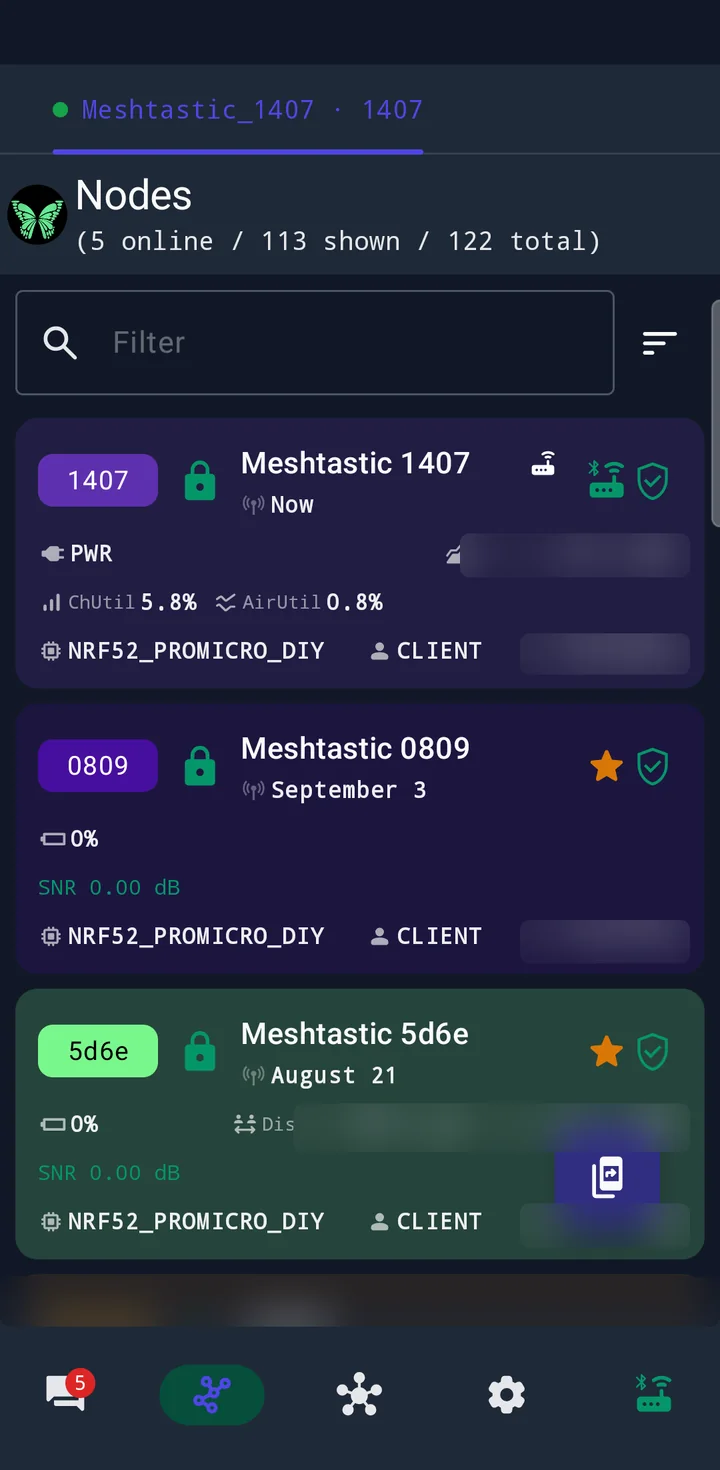
Every radio yours has heard ends up in this list, including ones heard days ago. The time under each name tells you how recent it is. Being on the list doesn't mean a radio is in range right now.

Tap a node for details like battery, signal and hardware. The filter box at the top helps once the list gets long.

Node IDs, altitude and other people's nodes are blurred.

Settings: radio first, app below

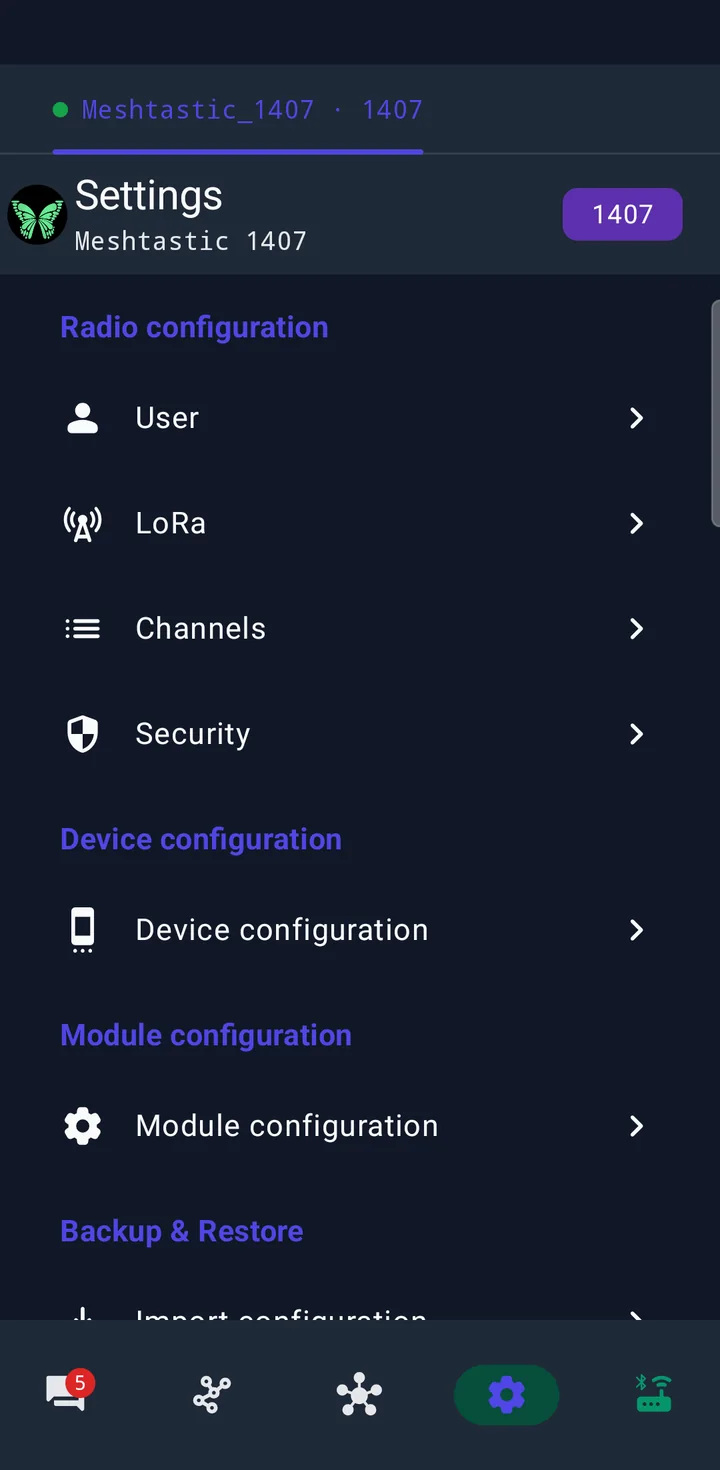
The top half of Settings changes the connected radio: User, LoRa, Channels, Security and more. The radio's name sits at the top, so you always know which one you're editing.

Scroll down for MeshLink's own settings, such as App language and Theme. Those only change the app on your phone.

Settings for the connected radio.

Troubleshooting

If something doesn't work

Most problems sit on one of the two links. Check Bluetooth first, then LoRa.

My radio doesn't show up when I scan

Make sure the radio is on and your phone's Bluetooth is on. Disconnect any other app or phone that might be using the radio, move closer and scan again. On Android 11 or older, Location has to be on as well.

The PIN doesn't work

Look at the radio's screen again; the code can change between attempts. For a radio without a screen, ask the owner whether the fixed PIN is still 123456. If it keeps failing, remove (forget) the radio in Android's Bluetooth settings and try again from MeshLink.

Android says “Paired”, but MeshLink isn't connected

Pairing in Android is only the first half. Open MeshLink's Connection tab, tap the radio there and wait for Connected.

I'm connected, but nobody gets my messages

“Connected” only covers your phone and your radio. For one radio to hear another, both need the same region, the same modem preset, and a channel with the same name and key. Compare these with your friend.

The radio keeps disconnecting

That happens when the radio restarts (after you save settings, for example), when its battery is low, or when you walk out of Bluetooth range. The radio stays under Remembered devices on the Connection tab; tap Connect to bring it back.