MeshLink connects the radio
Use MeshLink to connect by Bluetooth, view radio channels, read ordinary Meshtastic text and manage the radio. A radio channel appearing here does not automatically bind it to an NTsocial channel.
MeshLink manual · NTsocial integration
Start with one radio. Prepare it in MeshLink, then choose the radio channel from NTsocial. This Android guide takes you through both apps, one step at a time.
Before you start
This guide uses Android screens. Install both apps on the same phone: connecting the apps does not require an account pairing code.
Use MeshLink to connect by Bluetooth, view radio channels, read ordinary Meshtastic text and manage the radio. A radio channel appearing here does not automatically bind it to an NTsocial channel.
Use NTsocial to join a channel and chat. Its channel-level LoRa control selects which radio channel that conversation will use through MeshLink.
Install compatible versions of NTsocial and NTsocial MeshLink on the same Android phone. Allow the Bluetooth permissions MeshLink requests, and keep Bluetooth enabled.
Install from Google Play: NTsocial · NTsocial MeshLink
Attach the antenna, then power on a compatible radio and keep it near your phone. For your first setup, use one radio. The person at the other end also needs a working radio setup.
Both people must join the same NTsocial channel and use compatible radio settings: matching region, modem preset/frequency settings and radio channel name/key. A matching channel name alone is not enough.
Step by step
The order matters: get the radio ready, enable MeshLink in NTsocial, then save the route for one conversation.
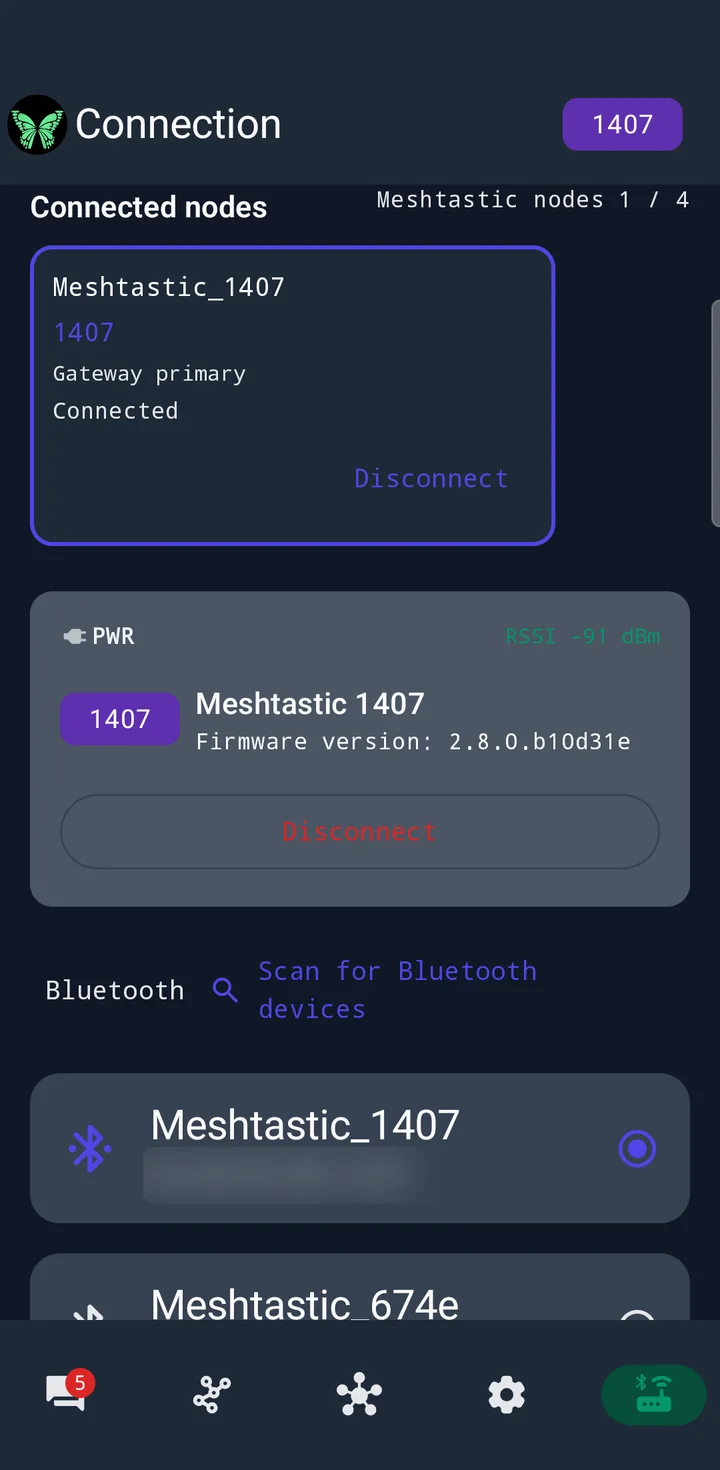
Open MeshLink and tap Connection. Scan for Bluetooth devices, select your radio and complete the system pairing prompt if it appears. Wait for synchronization to finish.
Open Channels and confirm the intended radio and channel are available. A cached or read-only channel is not a ready sending route.
New to radio setup? Follow Connect your first radio first, then return here.
If MeshLink asks you to set a region, finish that setup for your physical location before using the radio.
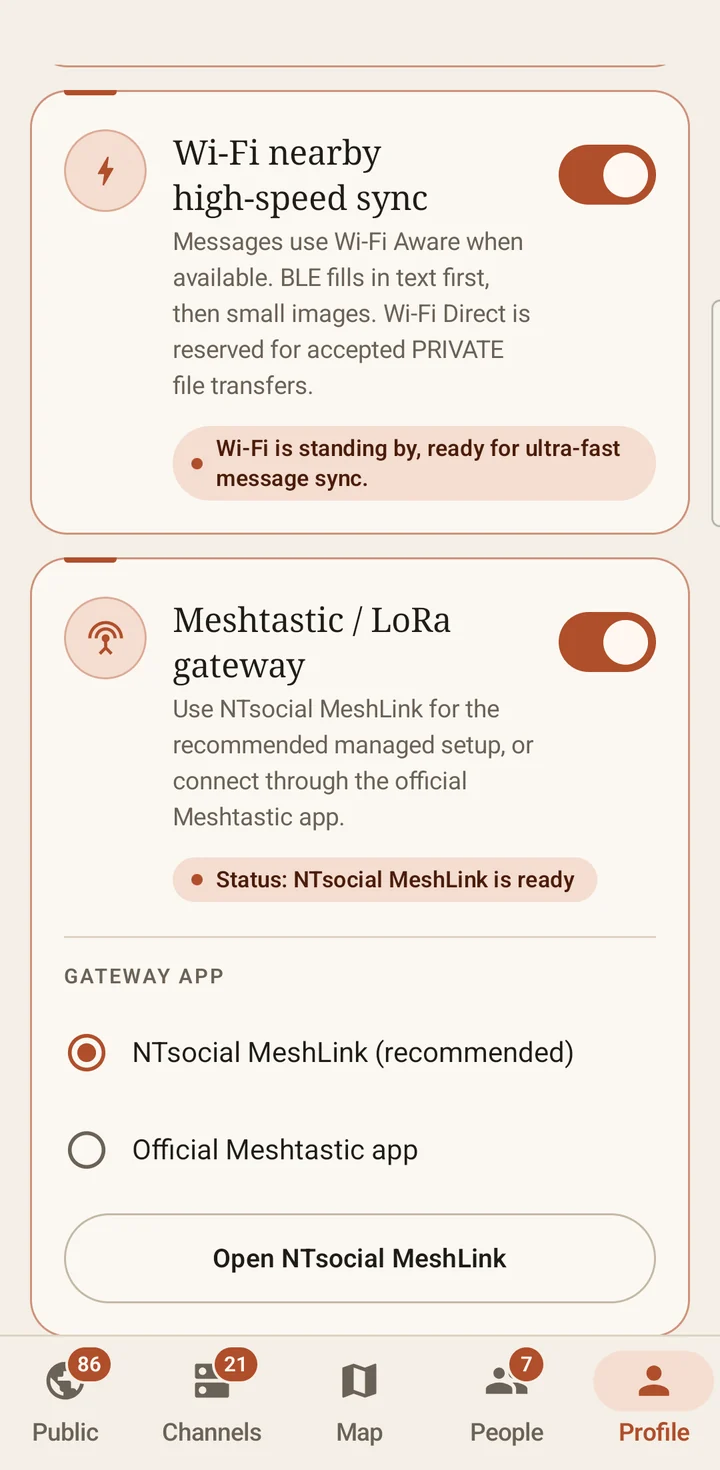
Switch to NTsocial and tap Profile at the bottom. Scroll down to Meshtastic / LoRa gateway. Under Gateway app, select NTsocial MeshLink (recommended), then turn on the switch beside the card title.
Wait for Status: NTsocial MeshLink is ready before continuing. If it is not ready, tap Open NTsocial MeshLink and check the radio connection.
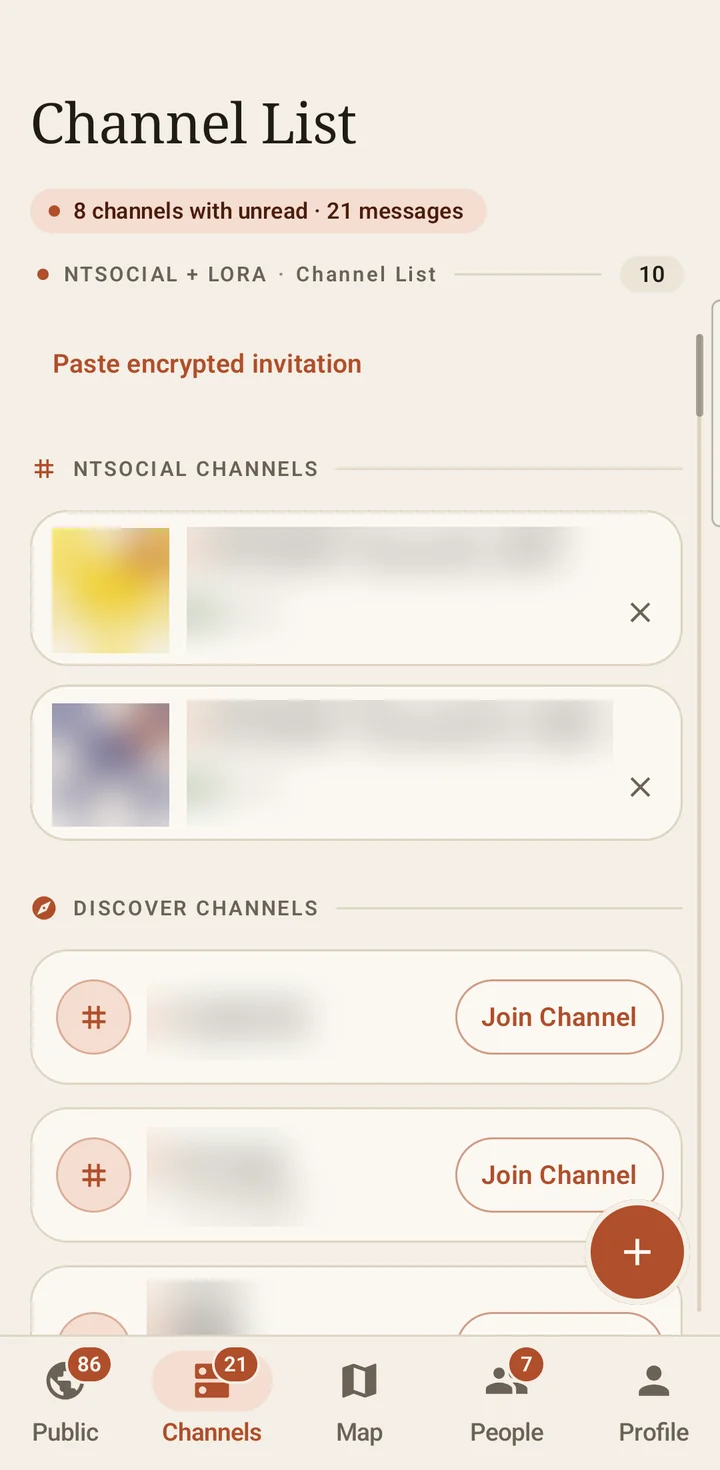
In NTsocial, open Channels and choose the conversation you want to use over LoRa.
If someone shared a channel QR code, import or scan it and then tap Join Channel; encrypted channels also need their password. Importing a QR code alone does not join the channel or finish its LoRa binding. Both people must join the same NTsocial channel.
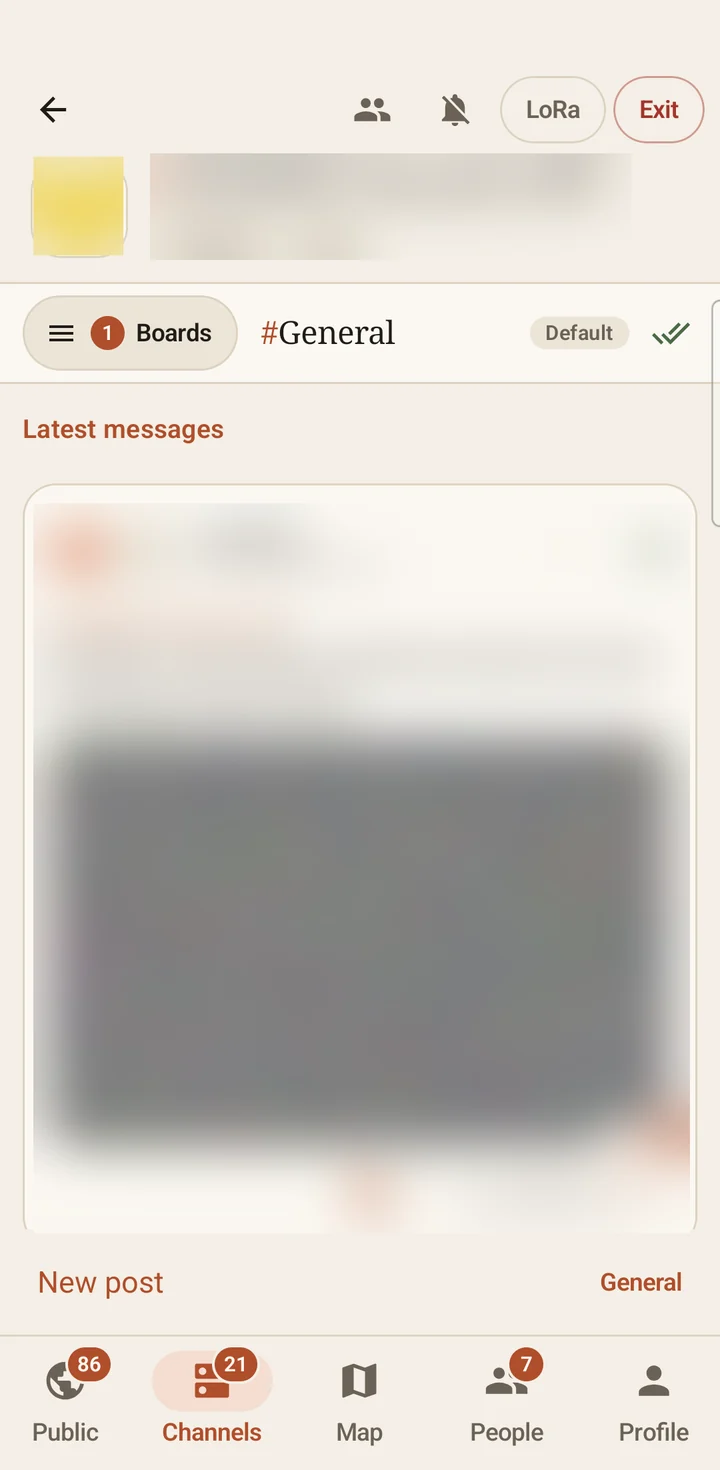
Open that NTsocial channel and tap LoRa in its top bar. This opens LoRa Route Settings for this channel.
Enabling the gateway in Profile does not bind every conversation. Start from a joined NTsocial channel, rather than an automatically listed MeshLink radio channel.
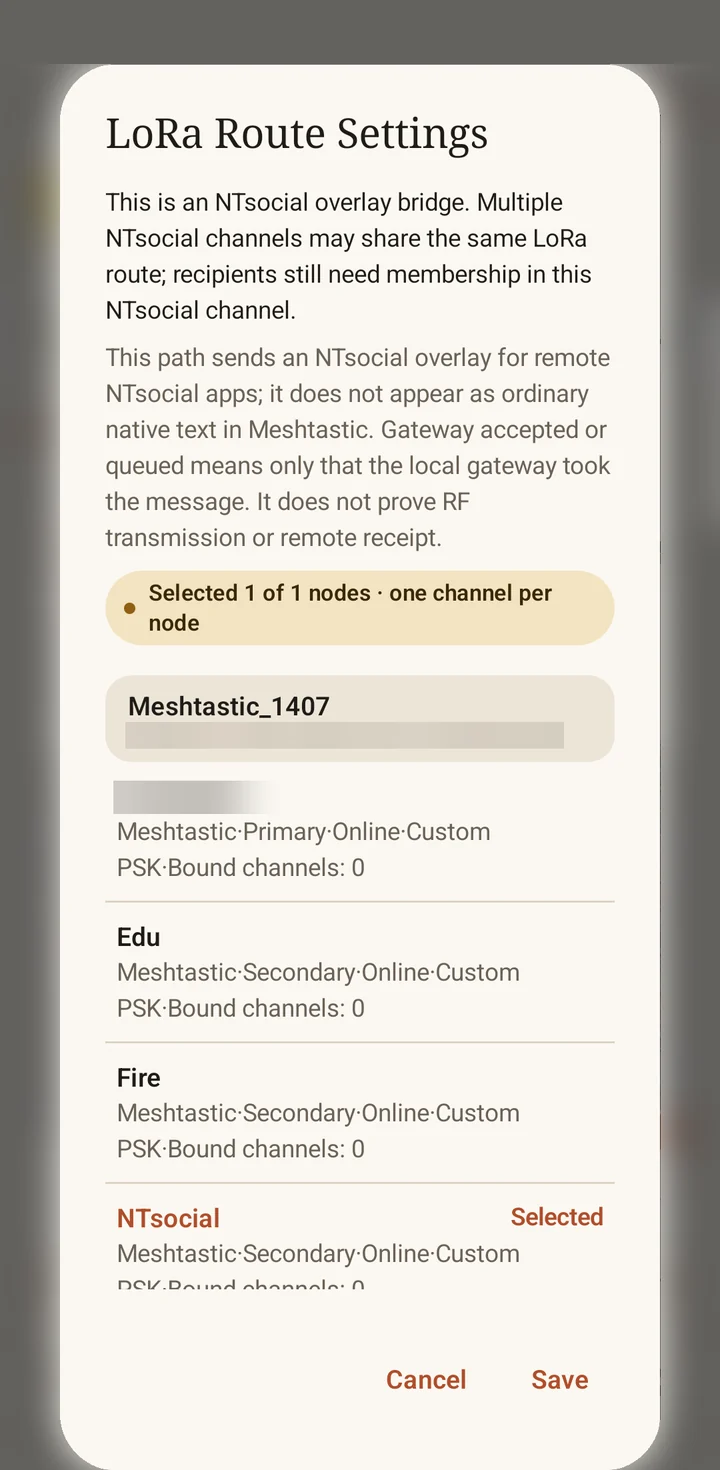
In LoRa Route Settings, find your connected radio and choose its intended Meshtastic channel. Check the radio name and channel together, then tap Save to apply your choice.
For your first setup, select one channel on one radio. If you later use several radios, select at most one channel per radio. Only select entries that are currently available.
After you save successfully, return to the conversation and check that its indicator reads LoRa ON. This is the expected result of your setup; it does not prove that another radio received a message.
Wi-Fi and mobile data being off does not by itself prove LoRa delivery: nearby NTsocial phones can still communicate over Bluetooth. For a LoRa-specific test, the two phone/radio pairs must also be outside direct phone-to-phone Bluetooth range.
Make sure other NTsocial phones cannot relay the text over Bluetooth between the two sides. A reply confirms receipt; it does not by itself identify which transport carried the message.
Android phone screenshots · 2026-10-20 · NTsocial 1.7.1 / MeshLink 1.0.9. Private content is obscured. Device and channel names are examples. Screens may differ by version or theme.
Know the apps
Connection: scan, connect and check your radio. Channels: open a radio channel to read or send ordinary Meshtastic text; use Manage channels / Scan QR for radio channel settings. Nodes: inspect known radio nodes. Settings or the radio card’s settings action: review the selected radio’s configuration.
Ordinary radio text and an NTsocial channel conversation are different uses. Seeing a radio channel here is not the NTsocial binding step.
The MeshCore tab is for a separate radio system. Use the Meshtastic connection and channels for this guide.
Profile: choose and enable the MeshLink gateway. Channels: join or open your NTsocial channels. Inside a conversation, use LoRa to choose its radio route, then type a short message in the composer.
LoRa carries supported text and small status/control information. Photos, voice clips, PTT audio and files do not travel over LoRa.
Automatically listed MeshLink radio channels send ordinary Meshtastic text. A bound NTsocial channel sends NTsocial-format traffic for another NTsocial app; it does not appear as ordinary chat text in MeshLink.
Other tabs: Public shows public posts; Map shows available map information; People lists people and connection information. Start your group conversation from Channels.
Confirm the result
A ready local setup is the start. A message seen by the other person and their reply are the useful end-to-end check.
Need a hand?
Check that both apps are installed on this phone and are compatible versions. Open MeshLink once, confirm Bluetooth permission and radio connection, then return to NTsocial’s Profile and check the provider and switch again.
Return to MeshLink and wait for synchronization to finish. Confirm the radio has the intended channel and is connected, then reopen the NTsocial route dialog. A remembered radio or cached channel list does not mean it is ready now.
An NTsocial channel QR and a MeshLink radio-channel QR have different jobs. In NTsocial, finish importing the invitation and tap Join; then open that channel and save its LoRa binding. In MeshLink, a radio-channel QR configures the radio and does not join or bind the NTsocial conversation.
Check that both people joined the same NTsocial channel using the same invitation, then compare the radio region, modem preset/frequency settings and channel name/key. The name alone does not identify the conversation or its radio configuration. Also check power, Bluetooth and radio range.
Those indicators can describe your local binding or a queued send. Confirm receipt on the other phone and ask for a reply. Keep test text short; images, voice, PTT and files are not a LoRa delivery test. If you change the radio or its channel settings, review the binding again.
Further reading
You can now return to the full MeshLink manual for radio configuration, or the NTsocial manual for channels and everyday messaging.