Read and write public posts, publish a trail journal in a channel and chat with a group. Then prepare a map, find a contact and learn how to back up and restore your identity.
Public is an open social feed, much like a Facebook feed or the public timeline on Twitter (X). Share an update or join a conversation already underway.
In #General, read the author and text on each card. To respond to a particular post, open its comments.
Tap #General at the top to browse topic tags. Choose a tag to read that board’s public posts together.
Back on the board, find the five tabs across the bottom. They open Public, Channels, Map, People and Profile.
00:32
02Posting
Draft a public update
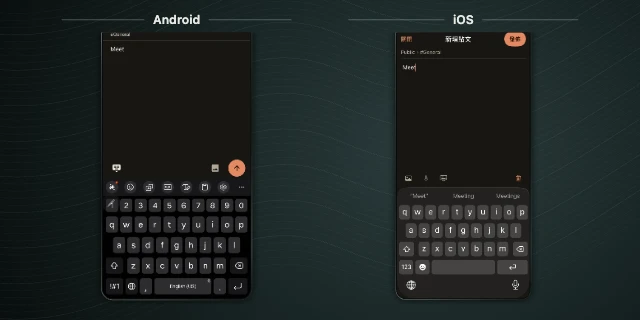
Say you want to remind everyone about a ten o’clock meetup. From #General, tap New Post at the bottom to open its editor.
Read the destination above the text field. Here it is #General under Public. Anyone reading that public board could see the reminder.
Type “Meet at 10”. The photo control lets you attach a picture. A line of text is enough for this example.
Check the time and destination before posting. Android has a send arrow beside the composer. On iPhone, Publish is at the top right. We leave the example as a draft.
01:00
03Channels
Create a channel
Open Channels for a space devoted to one subject or a regular group. The list includes the channels you have already joined.
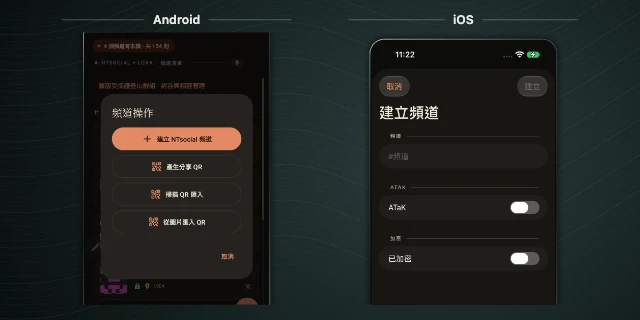
To start one, tap the plus at the bottom right on Android, then choose Create NTsocial Channel. On iPhone, tap the plus at the top right.
Choose a recognizable name, such as “Weekend Trails”. A writer could publish a series there, or a walking group could use it to arrange meetups.
Decide who can join before creating it. A regular channel can have no password. For a group that requires one, enable encryption and set a channel password.
01:31
04Creator board
Give your work a home
Return to the list and open a joined channel. Imagine it as your publication, where readers can find a new trail journal entry each week.
Tap the board name at the top. Start with General Discussion or organize a series using topic tags. Readers can come back to that board for the next installment.
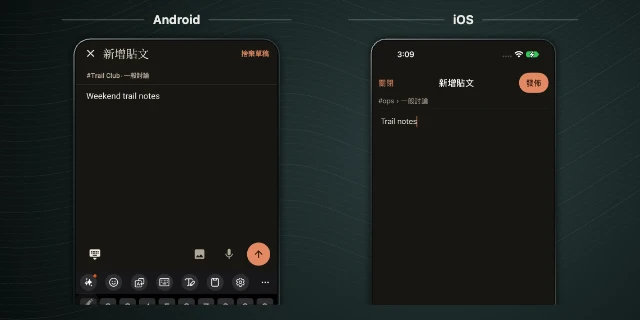
Open the board you want to update and tap New Post. Give each journal entry its own post, with photographs and observations together.
Check the channel name above the draft before publishing. Readers can use the comments on that entry to ask about the trail you described.
02:06
05Group discussion
Set a meeting time together
The same channel can serve as a group chat. Start a post asking what time to meet on Saturday so the whole team has one question to respond to.
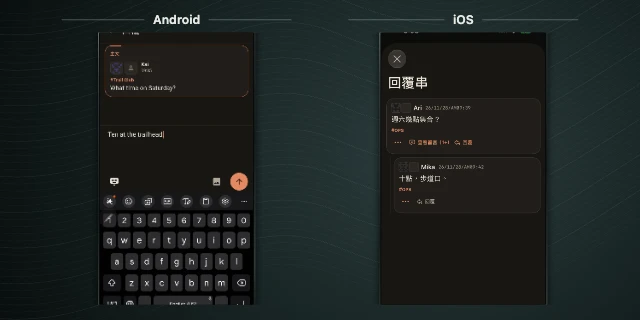
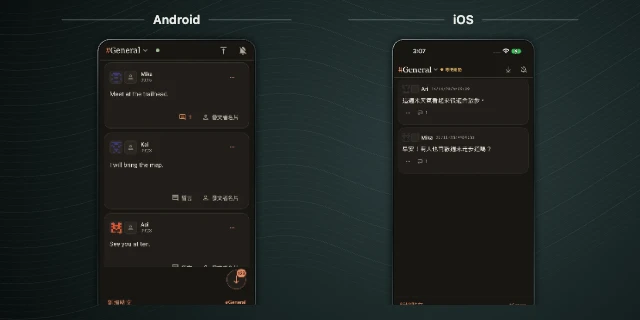
Open the post’s comments. The meetup question stays above the reply field. On iPhone, choose Return to Thread to read the full exchange.
Android shows “Ten at the trailhead” in the reply field. The iPhone shows a teammate’s answer. Keep time changes in this thread so everyone can follow the plan.
Check the channel and original post before sending. This reply is for the group. To tell just one teammate, open a direct conversation from People.
02:40
06Offline map
Prepare the map before leaving
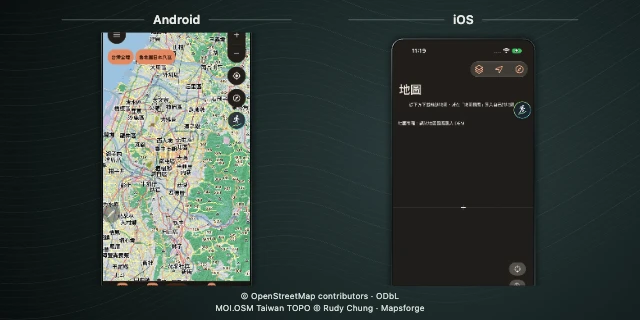
With the meetup set, tap Map in the middle. Android already has Taiwan map data. This iPhone prompts us to prepare its maps.
What you can see offline depends on the map data on the phone. Open the area you plan to walk while preparing and check that you can read the details you need.
On Android, tap the map tools at the top left. On iPhone, use the layers icon at the top. Review the installed map or import an offline file here.
Check the region and map style, then return to the map. Sharing your own position with teammates requires enabling location sharing separately.
03:08
07People
Find a person and open a direct chat
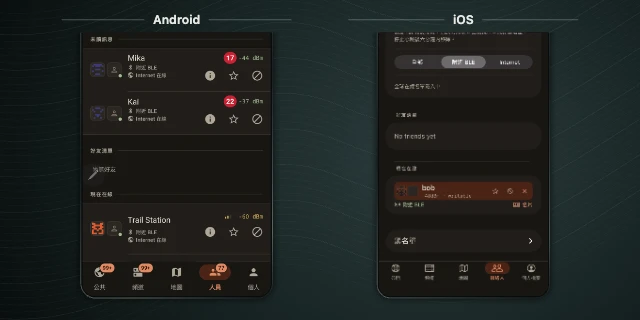
To ask one teammate privately, open the fourth tab. Look for People on Android and Contacts on this iPhone.
All shows the broader list. Switch to Nearby BLE to narrow it to people the phone is detecting over Bluetooth.
Check that you have the right person. Results change as people move in and out of range. If names are similar, check the person’s identifying information.
Select the person to open a direct conversation. Check the name at the top before writing in the field below. This conversation has one recipient.
03:36
08Profile
Review your profile and preferences
The rightmost tab opens your profile. Find the nickname and avatar people see, along with preferences for your own phone.
Update the public profile if you want teammates to recognize you. Put only information you are comfortable sharing in its public fields.
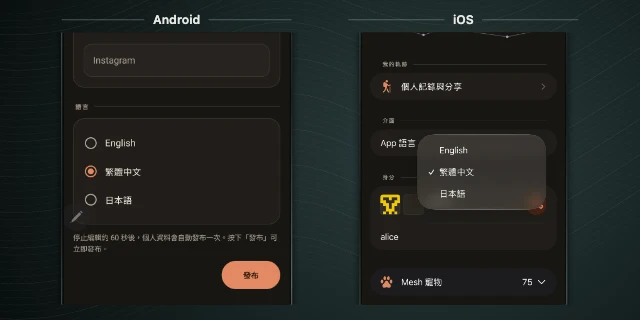
To change the interface language, scroll to the language choices on Android. On iPhone, open App Language.
Both offer English, Traditional Chinese and Japanese. We keep Traditional Chinese selected and return to Profile to find Crypto Identity.
04:00
09Identity backup
View your recovery phrase privately
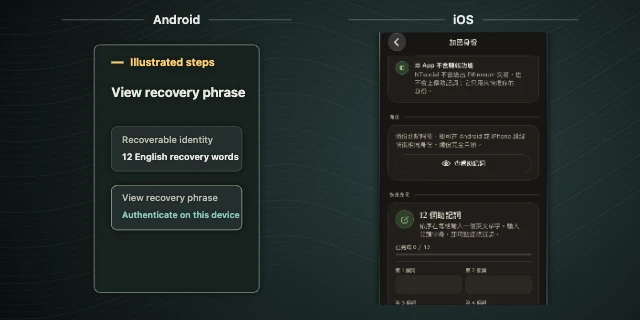
Before changing phones, open Crypto Identity in Profile and check the status. A recoverable identity has its own 12-word English recovery phrase.
In private, with recording off, tap Show Recovery Phrase and authenticate with your device lock. Anyone who reads the phrase can use this identity.
Copy the English words onto paper in order, from 1 through 12. The film masks the words and shows their positions.
Check spelling and order, then keep the paper offline. The app hides the words when you leave the screen or after about 30 seconds.
If a legacy identity has no recovery phrase, keep its original device and keys. Creating a recoverable identity generates a different identity.
04:38
10Changing phones
Preview before switching
On the replacement phone, open Crypto Identity and find the recovery section. Have your original paper backup ready and work somewhere private.
Enter one English word per numbered field. Type its first letters and choose the matching suggestion. Fill all 12 in the order on the paper.
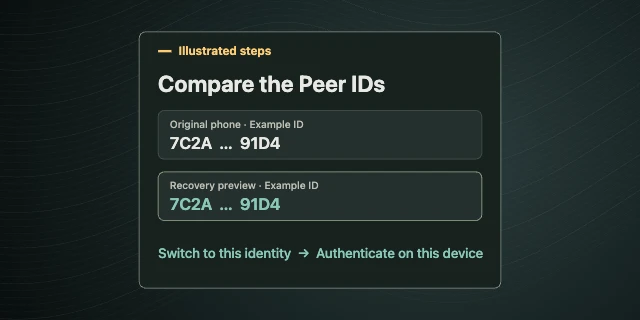
Choose Preview Recovered Identity. If validation fails, check the spelling and order. The preview shows the Peer ID you are about to recover.
Compare the preview with the Peer ID on your original phone. When they match, select Switch to This Identity and authenticate with the device lock.
Communication restarts as the recovered identity. Previous account data stays separate. Keep shared passwords separately. Expired messages with no surviving copy cannot be recovered with the phrase.
These Traditional Chinese captures come from a Galaxy S22 Ultra running NTsocial 1.8.6 and an iPhone 15 running NTsocial 1.2.3. Names and conversations are examples. Gold rings mark gestures. The protected Android identity screen is illustrated. The iPhone shows the reveal button and an empty recovery form. The diagrams use masked word slots and an example ID. Read the identity recovery guide


 00:00